# Imagetwin User Manual

Learn how to scan documents, review findings, and manage your results in Imagetwin.

<a href="mailto:contact@imagetwin.ai" class="button primary" data-icon="paper-plane">Contact support</a>

<table data-view="cards"><thead><tr><th></th><th></th><th data-hidden data-type="content-ref"></th><th data-hidden data-card-cover data-type="image">Cover image</th><th data-hidden data-card-target data-type="content-ref"></th></tr></thead><tbody><tr><td><h4><strong>How to Use the Tool</strong></h4></td><td>Learn how Imagetwin works, run your first scan, and analyze results in minutes</td><td><a href="https://user-manual.imagetwin.ai/how-to-use-imagetwin/">How to Use Imagetwin</a></td><td><a href="https://4054749049-files.gitbook.io/~/files/v0/b/gitbook-x-prod.appspot.com/o/spaces%2F7GSmS99vW4hLrqh8xbKd%2Fuploads%2FH1mGb29Rh3o8dUbRhzRk%2FScreenshot%202026-06-30%20at%2014.02.45.png?alt=media&amp;token=f047ad67-5994-494f-bc89-b1f85dd27f22">Screenshot 2026-06-30 at 14.02.45.png</a></td><td><a href="https://user-manual.imagetwin.ai/how-to-use-imagetwin/">How to Use Imagetwin</a></td></tr><tr><td><h4><strong>Feature Tutorials</strong></h4></td><td>Step-by-step guides for private repository, detailed view, confidence scores, and more</td><td><a href="https://user-manual.imagetwin.ai/feature-tutorials/">Feature Tutorials</a></td><td><a href="https://4054749049-files.gitbook.io/~/files/v0/b/gitbook-x-prod.appspot.com/o/spaces%2F7GSmS99vW4hLrqh8xbKd%2Fuploads%2FyDBZxVJm05B2As8fhLaH%2FScreenshot%202026-06-30%20at%2014.03.19.png?alt=media&amp;token=5f03ce22-f1f1-494c-a445-f71b1d2e80ea">Screenshot 2026-06-30 at 14.03.19.png</a></td><td><a href="https://user-manual.imagetwin.ai/feature-tutorials">Feature Tutorials</a></td></tr><tr><td><h4><strong>FAQs</strong></h4></td><td>Answers to the most common questions about scans, results, and your account</td><td><a href="https://user-manual.imagetwin.ai/frequently-asked-questions/">FAQ</a></td><td><a href="https://4054749049-files.gitbook.io/~/files/v0/b/gitbook-x-prod.appspot.com/o/spaces%2F7GSmS99vW4hLrqh8xbKd%2Fuploads%2FYYX5R1ddhhRcwudtq8sn%2FScreenshot%202026-06-30%20at%2014.03.28.png?alt=media&amp;token=e8eda56e-ded5-4ce9-a895-ebab840bd014">Screenshot 2026-06-30 at 14.03.28.png</a></td><td><a href="https://user-manual.imagetwin.ai/frequently-asked-questions/">FAQ</a></td></tr><tr><td><h4><strong>Image Analysis</strong></h4></td><td>Interpret your findings: image duplication, manipulation, AI-generated figures</td><td><a href="https://user-manual.imagetwin.ai/detailed-image-analysis/">Detailed Image Analysis</a></td><td><a href="https://4054749049-files.gitbook.io/~/files/v0/b/gitbook-x-prod.appspot.com/o/spaces%2F7GSmS99vW4hLrqh8xbKd%2Fuploads%2FdebaSjGQJNbvUtJRIwmw%2FScreenshot%202026-06-30%20at%2014.03.40.png?alt=media&amp;token=244f2df2-fd43-4403-8314-562598a0cdf4">Screenshot 2026-06-30 at 14.03.40.png</a></td><td><a href="https://user-manual.imagetwin.ai/detailed-image-analysis/">Detailed Image Analysis</a></td></tr><tr><td><h4><strong>For Admins</strong></h4></td><td>Manage your organization, members, permissions, and integrations</td><td><a href="https://user-manual.imagetwin.ai/for-admins/">For Admins</a></td><td><a href="https://4054749049-files.gitbook.io/~/files/v0/b/gitbook-x-prod.appspot.com/o/spaces%2F7GSmS99vW4hLrqh8xbKd%2Fuploads%2Fd8F18n1QaCnyY7BkDo2d%2FScreenshot%202026-06-30%20at%2014.03.45.png?alt=media&amp;token=6be1883f-b0b9-46c6-9840-eb1f93567397">Screenshot 2026-06-30 at 14.03.45.png</a></td><td><a href="https://user-manual.imagetwin.ai/for-admins/">For Admins</a></td></tr><tr><td><h4><strong>API Documentation</strong></h4></td><td>Connect Imagetwin to your editorial workflow via API. Guidance for developers</td><td><a href="https://user-manual.imagetwin.ai/api-documentation/">API Documentation</a></td><td><a href="https://4054749049-files.gitbook.io/~/files/v0/b/gitbook-x-prod.appspot.com/o/spaces%2F7GSmS99vW4hLrqh8xbKd%2Fuploads%2FC7emk2nZpbHrrt3XEOOP%2FScreenshot%202026-06-30%20at%2014.03.51.png?alt=media&amp;token=d35173a3-1e13-4b2c-814b-2803ec5f204d">Screenshot 2026-06-30 at 14.03.51.png</a></td><td><a href="https://user-manual.imagetwin.ai/api-documentation/">API Documentation</a></td></tr></tbody></table>

## Stay Updated with Imagetwin&#x20;

{% columns %}
{% column width="50%" %}

<figure><img src="https://4054749049-files.gitbook.io/~/files/v0/b/gitbook-x-prod.appspot.com/o/spaces%2F7GSmS99vW4hLrqh8xbKd%2Fuploads%2FDr3dC0I7plngcsvfNwB6%2FScreenshot%202026-06-30%20at%2014.27.09.png?alt=media&amp;token=4222c230-5343-419f-85c2-23ab91478a58" alt=""><figcaption></figcaption></figure>
{% endcolumn %}

{% column width="50%" valign="middle" %} <a href="https://www.linkedin.com/company/imagetwin/" class="button primary" data-icon="book-open">LinkedIn</a>&#x20;

<a href="https://manage.kmail-lists.com/subscriptions/subscribe?a=Rk8cbK&#x26;g=VggVvU" class="button secondary" data-icon="book">Newsletter</a>

<a href="https://imagetwin.ai/posts/" class="button secondary" data-icon="book">Blog and News</a>
{% endcolumn %}
{% endcolumns %}

&#x20;&#x20;


# How to Use Imagetwin

New to Imagetwin? Follow this step-by-step introduction to learn how to run scans, review results, and make the most of the platform.

<a href="mailto:contact@imagetwin.ai" class="button primary" data-icon="paper-plane">Contact support</a>

***

To start, log into the Imagetwin app at <https://app.imagetwin.ai/>

<figure><img src="https://974595991-files.gitbook.io/~/files/v0/b/gitbook-x-prod.appspot.com/o/spaces%2F3WY92xS0tbf9xQtWwUxD%2Fuploads%2FIV2kIdb0LVj4EYQs1cfq%2FChatGPT%20Image%20Jun%2030%2C%202026%20at%2002_46_21%20PM.png?alt=media&amp;token=976ae523-7c74-4cae-bf58-13e0857c3ff1" alt=""><figcaption></figcaption></figure>

{% embed url="<https://www.youtube.com/watch?v=4Az4FO0mreI>" %}

{% stepper %}
{% step %}

#### Step 1: Scan page

Drag and drop your file(s) into the dedicated area or click the area and choose a file through a file selection dialog.

<img src="https://974595991-files.gitbook.io/~/files/v0/b/gitbook-x-prod.appspot.com/o/spaces%2F3WY92xS0tbf9xQtWwUxD%2Fuploads%2Fg4IM9DZCATs7IL0zrju8%2Funknown.png?alt=media&amp;token=a674cc1a-0cdf-4ed1-87fe-9d19aa728abd" alt="" height="313" width="602">

Supported formats include .pdf, .jpg, .jpeg, .png, .gif, .jfif, .bmp, .tif, .tiff, .svg, .webp, .doc, .docx.
{% endstep %}

{% step %}

#### Step 2: Start the scanning process

After reviewing the selected file, click “Scan” at the bottom of the page. Scans are automatically saved for 90 days and can be accessed in the History tab (on the left side) later on. If you prefer not to save a scan, simply uncheck the “Save scan for 90 days” option before proceeding. Saved scans are only accessible and visible to you (and/or your institution).

<img src="https://974595991-files.gitbook.io/~/files/v0/b/gitbook-x-prod.appspot.com/o/spaces%2F3WY92xS0tbf9xQtWwUxD%2Fuploads%2FSDHx6EvTXDB19IsRlYuU%2Funknown.png?alt=media&amp;token=2fda50e3-6a28-4e3e-ad62-e55984df50a6" alt="" height="309" width="602">
{% endstep %}

{% step %}

#### Step 3: Congratulations, your scan has been successfully completed.

You will be automatically redirected to the Results page. On the top of the page, you will see a summary bar of all findings, and how many of each Imagetwin has found.&#x20;

<img src="https://974595991-files.gitbook.io/~/files/v0/b/gitbook-x-prod.appspot.com/o/spaces%2F3WY92xS0tbf9xQtWwUxD%2Fuploads%2FTJ6LgMxXEjOgorLgnEaF%2Funknown.png?alt=media&amp;token=a4a62c5c-0c83-47a9-a9c5-0b48fbc6941d" alt="" height="55" width="602">
{% endstep %}

{% step %}

#### Step 4: Review your results

Imagetwin will show you where it has detected duplicates within the paper you have uploaded, across other publications, manipulations, as well as AI-generated images. By clicking on each finding, the detail view opens up, which allows you to investigate the finding further and offers a further forensic analysis.
{% endstep %}
{% endstepper %}

### <mark style="color:$primary;">Analyze the different finding types</mark>&#x20;

#### Finding type 1: Duplicate across the page&#x20;

<img src="https://974595991-files.gitbook.io/~/files/v0/b/gitbook-x-prod.appspot.com/o/spaces%2F3WY92xS0tbf9xQtWwUxD%2Fuploads%2FnYKt5WvHuVl0ciQyzeux%2Funknown.png?alt=media&amp;token=98dbea12-51a7-4e08-88dc-8a7f374fd92d" alt="" height="309" width="602">

When Imagetwin identifies duplicated images on the same page, the matching regions are marked with corresponding colored outlines. To compare the detected matches more easily, select Area in the upper-right corner. This will display the related images—or specific image sections—next to each other for a side-by-side review.

#### Finding type 2: Duplicate across an external publication&#x20;

<img src="https://974595991-files.gitbook.io/~/files/v0/b/gitbook-x-prod.appspot.com/o/spaces%2F3WY92xS0tbf9xQtWwUxD%2Fuploads%2FSwNncfabSQyvex4p0Icw%2Funknown.png?alt=media&amp;token=897bfca9-af02-4469-98ca-3975b2a9df80" alt="" height="309" width="602">

If Imagetwin detects a match with images published in an external source, it displays relevant publication details along with available reference links, such as DOI or PubMed Central records. The review process remains the same as for internal matches: click Area to focus on the detected regions and compare the images or image segments side by side.

#### Finding type 3: Manipulations

Imagetwin can identify a wide range of image manipulations commonly found in research publications, including splicing, cloning, concealed edits, and more.

<img src="https://974595991-files.gitbook.io/~/files/v0/b/gitbook-x-prod.appspot.com/o/spaces%2F3WY92xS0tbf9xQtWwUxD%2Fuploads%2FMLodhM2b7YOviUeIvICf%2Funknown.png?alt=media&amp;token=a3d2934a-1988-4e84-b02a-3ede10c050c6" alt="" height="312" width="602">

For each detected manipulation, Imagetwin provides three views to support the review process:

* Original Image (top): the unmodified source image.
* Enhanced View (middle): a filtered version designed to make potential manipulations more visible, such as splice boundaries or cloned regions.
* Suspicious Area View (bottom): a detailed close-up of the flagged region, allowing for closer inspection. You can customize the visualization by applying different filters and adjusting the heatmap settings, making it easier to examine potential issues in greater detail.

#### Finding type 4: AI-generated images

<img src="https://974595991-files.gitbook.io/~/files/v0/b/gitbook-x-prod.appspot.com/o/spaces%2F3WY92xS0tbf9xQtWwUxD%2Fuploads%2FRqJvu35HsAlfBdUaBFs2%2Funknown.png?alt=media&amp;token=2342817b-ac78-4c5d-9353-08f299f85cc9" alt="" height="290" width="561">

Each paper scanned by Imagetwin will also be scanned using our AI detector for images to help identify AI-generated visuals. Each flagged image includes an “AI Assessment” showing a distribution of which generator was most likely used. For example, you may see a score indicating a higher probability of generation by Firefly (Adobe's family of generative AI tools) compared to DALL-E or Stable Diffusion. This gives you more context to evaluate flagged cases.&#x20;


# Feature Tutorials

Follow this guide to discover features and settings that can help you review results more efficiently and customize your experience.

​​<a href="mailto:contact@imagetwin.ai" class="button primary" data-icon="paper-plane">Contact support</a>

{% columns %}
{% column width="33.33333333333333%" %}
{% content-ref url="/pages/EfUiL1T29MZdm3eA2me2" %}
[PDF Report](https://user-manual.imagetwin.ai/feature-tutorials/feature-tutorials/pdf-report)
{% endcontent-ref %}

{% content-ref url="/pages/onnqxQzCm1J9CYJsw7YZ" %}
[Shared Link](https://user-manual.imagetwin.ai/feature-tutorials/feature-tutorials/shared-link)
{% endcontent-ref %}

{% content-ref url="/pages/UzInu8dYKSgLg6USOwTt" %}
[History](https://user-manual.imagetwin.ai/feature-tutorials/feature-tutorials/history)
{% endcontent-ref %}
{% endcolumn %}

{% column width="33.33333333333333%" %}
{% content-ref url="/pages/035Q9tMmPSD4M8sIGoAB" %}
[Private Repository](https://user-manual.imagetwin.ai/feature-tutorials/feature-tutorials/private-repository)
{% endcontent-ref %}

{% content-ref url="/pages/58noAgEZjH9Hxqd84YhM" %}
[Confidence Score](https://user-manual.imagetwin.ai/feature-tutorials/feature-tutorials/confidence-score)
{% endcontent-ref %}
{% endcolumn %}

{% column width="33.33333333333333%" %}
{% content-ref url="/pages/kOlnohEya3T8H2CAAPYC" %}
[Analyzed Images](https://user-manual.imagetwin.ai/feature-tutorials/feature-tutorials/analyzed-images)
{% endcontent-ref %}

{% content-ref url="/pages/3fJme8PPaIs4eVzg3nXD" %}
[Manual Panel Adjustment](https://user-manual.imagetwin.ai/feature-tutorials/feature-tutorials/manual-panel-adjustment)
{% endcontent-ref %}
{% endcolumn %}
{% endcolumns %}

&#x20;

#### Test the Features and Stay Updated with Imagetwin

{% columns %}
{% column width="50%" %}

#### <a href="https://app.imagetwin.ai/" class="button primary" data-icon="window">Our App</a>&#x20;

<a href="https://manage.kmail-lists.com/subscriptions/subscribe?a=Rk8cbK&#x26;g=VggVvU" class="button secondary" data-icon="book">Newsletter</a>

<a href="https://imagetwin.ai/posts/" class="button secondary" data-icon="book">Blog and News</a>

{% endcolumn %}

{% column width="50%" valign="middle" %}

{% endcolumn %}
{% endcolumns %}

&#x20;&#x20;


# PDF Report

Generate and save a PDF summary of your scan.

{% embed url="<https://youtu.be/L3fyIuOasac?si=sjexMEu7OYAgENsM>" %}

For every scan performed in Imagetwin, you can generate a PDF report containing the scan results and save it for future reference. Unlike scan history, which is retained for 90 days, PDF reports can be stored indefinitely on your device.

To generate a report, open the scan results and click Generate Report in the upper-right corner of the page. Imagetwin will create a PDF version of the findings, which can then be downloaded and saved locally.&#x20;

<img src="https://1224749698-files.gitbook.io/~/files/v0/b/gitbook-x-prod.appspot.com/o/spaces%2F9FOG6jz2DPHQVuwmVV1E%2Fuploads%2FzIZWlE9D0WGNhCATPIGH%2Funknown.png?alt=media&amp;token=44693c43-8f06-496e-adb4-e67aa6cecf25" alt="" height="312" width="602">

#### Report Contents

**Page 1: Scan Summary**

The first page provides a high-level overview of the scan, including:

* The name of the scanned file
* The date and time the scan was performed
* The overall risk assessment assigned by Imagetwin, based on the detected integrity issues and their confidence scores
* A summary of all detected findings, including the number of duplicates, manipulations, and other integrity issues identified during the scan

**Page 2: External Publication Matches**

If Imagetwin detects duplicates from external publications, the second page will include details about these matches, including available publication metadata and links to the original sources. This section also provides an overview of the scanned document and the external publications referenced in the findings.


# Shared Link

Share an interactive scan link, no account access needed.

{% embed url="<https://youtu.be/13p4RjtFfPE?si=gdSCniYaViK7Zj7J>" %}

As an alternative, or in addition, to generating a PDF report, you can share the results of a scan using a secure link. To create a shared link, click the Share icon located next to the Generate Report button in the upper-right corner of the Results page.

<img src="https://1224749698-files.gitbook.io/~/files/v0/b/gitbook-x-prod.appspot.com/o/spaces%2F9FOG6jz2DPHQVuwmVV1E%2Fuploads%2FRTYhglFJGtjcnVS1hPH1%2Funknown.png?alt=media&amp;token=e9e2a152-fba6-4d57-9133-2de5710cd823" alt="" height="112" width="498">

Shared links allow colleagues, authors, editors, or other stakeholders to review the scan findings directly in Imagetwin. Recipients can explore the results in the same interactive format available to you, including:

* Detailed views of detected findings
* Side-by-side image comparisons
* Forensic analysis views
* Confidence scores and finding information

This provides a more comprehensive review experience than a static PDF report, as users can interact with the findings and examine them in greater detail.

**Privacy and Access**

Shared links grant access only to the specific scan that was shared. Recipients do not gain access to your Imagetwin account, scan history, repositories, organization settings, or any other scans you have performed.

This makes shared links a convenient and secure way to collaborate on scan results while keeping the rest of your account and data private.


# History

Browse, filter, and revisit your past 90 days of scans.

{% embed url="<https://youtu.be/Kr6bTSgXt9M?si=JkI9r8ZqLa6UgO6v>" %}

By default, all scans are automatically saved to your History for 90 days, provided that the Save Scan option was enabled during the scanning process.

The History tab gives you quick access to your previous scans and allows you to revisit results at any time. For each saved scan, you can view:

* Date and time of the scan
* File name
* Number of pages
* Total number of image integrity issues detected

To review a past scan, simply click on it in the list. You will be taken directly to the scan's Results page, where you can continue your analysis and review the findings in detail.

History Filters: several filters are available to help you find specific scans more easily:

**API Scans**

If you use Imagetwin through an external integration (such as a manuscript submission system), you can filter scans based on where they were performed:

* Scans submitted through the external tool
* Scans submitted directly through the Imagetwin application

**Team Scans**

If your organization has enabled Shared History, you can choose to view:

* Only your own scans
* Scans performed by all members of your team or organization

**Scans with No Issues Found**

You can filter the scan list to show only scans where Imagetwin detected image integrity issues, making it easier to focus on files that may require further review.

<img src="https://1224749698-files.gitbook.io/~/files/v0/b/gitbook-x-prod.appspot.com/o/spaces%2F9FOG6jz2DPHQVuwmVV1E%2Fuploads%2FEnj4hWycAdmMe03i2t1N%2Funknown.png?alt=media&amp;token=4a7961e5-978f-4217-9474-1f8e36dd1ac0" alt="" height="315" width="602">


# Private Repository

Build a private database to catch reuse across your papers.

{% embed url="<https://youtu.be/TCJCxS-NoiU?si=oCQeObs2aFCa4t58>" %}

The Private Repository feature allows you to build your own secure database of publications, figures, and images. Once content has been added to a repository, future scans can be compared against it, enabling the detection of image reuse and duplication across your organization's own collection of publications.&#x20;

This is particularly useful for identifying figure reuse across manuscripts from the same research group, screening submissions against previously reviewed content, or maintaining an archive of historical publications for ongoing integrity checks. Repository data remains private and is only accessible to users with appropriate permissions.<br>

Imagetwin allows for 2 types of repositories: User repository, and shared repository

<img src="https://1224749698-files.gitbook.io/~/files/v0/b/gitbook-x-prod.appspot.com/o/spaces%2F9FOG6jz2DPHQVuwmVV1E%2Fuploads%2FYPo4B7Oq5oZfEQdIVUJ8%2Funknown.png?alt=media&amp;token=366505a3-6bd3-41ca-973c-0c912becc758" alt="" height="111" width="602">

**Creating a Repository**

To create your first repository:

1. Navigate to the Repository page.
2. Select Create user repository or Create shared repository at the top of the page.
3. Enter a name for the repository and confirm creation.
4. Open the repository and upload publications, documents, or images.
5. Once content has been indexed, future scans can be compared against repository content automatically.

**Uploading Files**

Repositories can store publications, figures, and images that you want future scans to be checked against. As your repository grows, it becomes a searchable image database that can identify duplicates not only within a scanned paper but also across your repository's entire collection.

When documents are uploaded, Imagetwin extracts the relevant image data and prepares it for future comparisons. Repository content remains private and is never visible outside the users or organizations with whom it has been explicitly shared.

**Repository-Based Duplicate Detection**

When a new paper is scanned, Imagetwin compares its images against both the paper itself and any repositories selected for the scan. If matching images are found, the results are displayed alongside standard duplicate findings, allowing you to investigate potential image reuse across publications that would otherwise be difficult to detect.

This makes repositories particularly valuable for:

* Monitoring image reuse across multiple publications from the same laboratory or research group.
* Screening incoming manuscripts against previously reviewed papers.
* Maintaining institutional archives for ongoing research integrity monitoring.
* Supporting collaborative investigations across editorial and integrity teams.

**Managing Repository Access**

For Shared Repositories, access can be managed directly by repository administrators. Users can be granted either administrative privileges or scan-only access depending on their role within the review process.

Careful permission management allows organizations to collaborate efficiently while maintaining control over repository content and ensuring sensitive material remains accessible only to authorized users.


# Confidence Score

See how likely each finding is a real concern.

{% embed url="<https://youtu.be/ZYALJZFrKfk?si=5955zZnwwTyyP8Vn>" %}

Each detected finding is assigned a confidence score ranging from 0% to 100%. This score reflects the likelihood that a duplicate represents a genuine research integrity concern rather than an acceptable or expected reuse of an image.&#x20;

The confidence score is calculated by Imagetwin's AI models using multiple factors, including image similarity, image type, duplicate type, and the broader context in which the duplicate appears. For example, certain image classes and reuse patterns are more commonly associated with legitimate figure preparation, while others are more frequently linked to integrity issues.

**Confidence scores are grouped into three categories:**

* 0–32% (Low): Typically indicates a duplicate that is unlikely to be problematic. These findings are hidden by default but can be reviewed by lowering the confidence threshold.
* 33–65% (Fair): Suggests a potential integrity concern that warrants further investigation.
* 66–100% (High): Indicates a high probability that the duplicate represents a problematic case requiring attention.

By default, Imagetwin displays findings with Fair and High confidence scores, helping users focus on the most relevant cases first. A confidence filter can be used to adjust the threshold and include lower-confidence findings when a more comprehensive review is required.

While confidence scores are a powerful prioritization tool, they are intended to support—not replace, human judgment. All flagged findings should be evaluated within the scientific and publication context of the document being reviewed.<br>

<img src="https://1224749698-files.gitbook.io/~/files/v0/b/gitbook-x-prod.appspot.com/o/spaces%2F9FOG6jz2DPHQVuwmVV1E%2Fuploads%2FGPlGI59cbGejQXyQa9rN%2Funknown.png?alt=media&amp;token=6218194d-cf2e-4fc2-8096-01b33790b93d" alt="" height="258" width="393">


# Analyzed Images

View every figure and sub-image that was scanned.

{% embed url="<https://youtu.be/EUB3hwtRgcg?si=GOTbZuR1m6BFWPo->" %}

You can display the images that were automatically extracted and analyzed by Imagetwin. Use the button shown in the illustration below to display all subimages and figures scanned for integrity issues. This feature fosters transparency, allowing you to identify wich images were analyzed and which were not.

Here is how Imagetwin analyzes sub-images and figures: Extracted sub-images (e.g., western blot, microscopy, or FACS panels) are checked individually (e.g., for splicing), compared with each other, and matched against our image database to detect reuse across publications. Figures are checked against our image database to detect the reuse of entire figures across articles.&#x20;

<img src="https://1224749698-files.gitbook.io/~/files/v0/b/gitbook-x-prod.appspot.com/o/spaces%2F9FOG6jz2DPHQVuwmVV1E%2Fuploads%2Fvv5xtrXV1cMf4giEwcBj%2Funknown.png?alt=media&amp;token=387a1d20-830b-4930-ae51-8e89f3a1081e" alt="" height="349" width="602">


# Manual Panel Adjustment

Review and adjust which panels get scanned.

{% embed url="<https://youtu.be/u2JmcV2N-eo?si=g-TlLElg2s3B05Ub>" %}

This feature allows you to automatically adjust, update, or delete image panels canned for integrity issues. While our algorithm automatically extracts figures and sub-image panels to check for integrity issues, you can use this feature for transparency - to see what will be scanned and to adjust the image areas if needed.&#x20;

***

After selecting your file to be scanned, you can open the panel editor (“Adjust panels”). Imagetwin will then automatically show the figure and sub-image boxes that you can adjust.&#x20;

* Sub-images: individual panels or sections within a composite research figure. Out software analyzes both entire figures and sub-images for potential integrity issues. Common sub-image types are, for example, western blots, FACS plots, or microscopy image panels.&#x20;
* Figures: refer to actual figures within your paper, typically labeled with a number and caption. Imagetwin compares figures against our figures in our image database to detect reuse across papers&#x20;

<img src="https://1224749698-files.gitbook.io/~/files/v0/b/gitbook-x-prod.appspot.com/o/spaces%2F9FOG6jz2DPHQVuwmVV1E%2Fuploads%2FX34ajEabx6eN4lNEeGBE%2Funknown.png?alt=media&amp;token=1fb4008d-3043-4873-983f-3148412a2b20" alt="" height="288" width="565">

You can open the manual panel adjustment on the scan page after selecting a paper.&#x20;

<img src="https://1224749698-files.gitbook.io/~/files/v0/b/gitbook-x-prod.appspot.com/o/spaces%2F9FOG6jz2DPHQVuwmVV1E%2Fuploads%2F7etDFkVplisTdAK9bmJ4%2Funknown.png?alt=media&amp;token=5e75e1c5-ca15-4bc5-9141-79f392810c58" alt="" height="344" width="457">

In this example, one figure (the red box) and six subimages (blue boxes) have been correctly labeled. Therefore, no manual adjustment is necessary. <br>

<img src="https://1224749698-files.gitbook.io/~/files/v0/b/gitbook-x-prod.appspot.com/o/spaces%2F9FOG6jz2DPHQVuwmVV1E%2Fuploads%2FVha2wUaU5CCZ2vYb34gR%2Funknown.png?alt=media&amp;token=83f3c296-e7b4-4cd1-b470-7e905ce1b845" alt="" height="260" width="513">

In this example, the automatic extraction missed one subimage - the western blot in the last row. You can draw a new subimage using the button in the top bar.


# Frequently Asked Questions

Browse the topics below or use the search button to find answers.

<a href="mailto:contact@imagetwin.ai" class="button primary" data-icon="paper-plane">Contact support</a>

#### <mark style="color:$primary;">Pricing and Support</mark>

<details>

<summary>What pricing options does Imagetwin offer?</summary>

Three tracks: one-off purchases for occasional use, and yearly plans for teams. One-off: €29 for a single scan, down to €10/scan on the 50-scan bundle (€499). Yearly plans start at Essentials (€999/yr, 200 scans, up to 10 users) up to Pro (€3,499/yr, 1,000 scans, up to 50 users, SSO). Enterprise is custom-priced for unlimited scans, users, and API integration.

</details>

<details>

<summary>What does one scan include?</summary>

One PDF or up to 25 individual images, including all sub-images within figures.

</details>

<details>

<summary>What if I only need it once?</summary>

One-off bundles (single scan up to 50-scan bundle) work with no ongoing commitment. Scans are valid for 12 months from purchase.

</details>

<details>

<summary>Do you offer volume or institutional pricing?</summary>

Yes. Discounted per-scan rates apply on yearly plans, and Enterprise plans offer custom pricing for high-volume or institution-wide use, reach out to <contact@imagetwin.ai> to discuss.

</details>

<details>

<summary>What support is included?</summary>

All users get customer support. Professional and Enterprise plan users also get a dedicated Account Manager.

</details>

<details>

<summary>Can I get a demo or trial?</summary>

Yes, reach out to <contact@imagetwin.ai> or schedule a live demo at <https://imagetwin.ai/contact/>.

</details>

#### <mark style="color:$primary;">What Imagetwin Detects</mark>

<details>

<summary>What types of issues does Imagetwin detect?</summary>

Duplications within a manuscript, duplications against published literature (plagiarism), image manipulations (splicing, copy-move forgeries), and AI-generated images.

</details>

<details>

<summary>How does duplicate and plagiarism detection work?</summary>

Imagetwin detects exact duplicates, cropped/resized reuse, rotated or flipped images, brightness/contrast adjustments, and cloned regions, both within a manuscript and against a database of 160M+ published figures. Matches are flagged with bounding boxes, keypoints, a confidence score (0–100%).

</details>

<details>

<summary>How does manipulation detection work?</summary>

Currently applied to western blot images, it detects splicing and copy-move forgeries using a colour-coded heatmap, shown in a three-panel view (original, filtered, heatmap). Other image types are covered by duplication and plagiarism detection.

</details>

<details>

<summary>How does AI-image detection work?</summary>

Deep learning models trained on scientific images assign a confidence score for AI generation and identify the likely source model (DALL-E, GPT, Firefly, Stable Diffusion). Applied to microscopy, histology, western blots, cell cultures, and spot images. Detection still works on cropped, resized, or colour-adjusted images, though heavy edits reduce confidence.

</details>

#### <mark style="color:$primary;">Data Security and Reporting</mark>

<details>

<summary>Is my data secure with Imagetwin?</summary>

Yes. All uploads are encrypted, never added to Imagetwin's global database, and automatically deleted once processing completes.

</details>

<details>

<summary>Can I generate a report of the results?</summary>

Yes. Imagetwin produces structured PDF reports summarizing flagged issues, usable for manuscript submission, internal review, or compliance documentation.

</details>

#### <mark style="color:$primary;">Getting Started, Integrations & Use Cases</mark>

<details>

<summary>How do I get access to Imagetwin?</summary>

Create an account and start scanning immediately, free example documents are available to try first.

</details>

<details>

<summary>Does Imagetwin integrate with existing workflows?</summary>

Yes, including peer-review and publishing platforms such as ScholarOne, Morressier, and TNQ Technologies. An API is also available, documented for technical integration, with support on hand.

</details>

<details>

<summary>Can Imagetwin be used for pre-submission checks, investigations, and grant applications?</summary>

Yes, Imagetwin supports pre-submission screening, post-publication reviews, misconduct/ethics investigations, and grant application checks, for individual researchers as well as institutional and publisher workflows.

</details>

<details>

<summary>Where can I find support or discuss a custom plan?</summary>

Contact us through <https://imagetwin.ai/contact/>, for support questions or to discuss high-volume/institutional scanning plans.

</details>


# Detailed Image Analysis

Everything you need to build, deploy, and manage your projects on the platform.

<a href="mailto:contact@imagetwin.ai" class="button primary" data-icon="paper-plane">Contact support</a>

***

<table data-card-size="large" data-view="cards"><thead><tr><th></th><th></th><th data-hidden data-card-target data-type="content-ref"></th><th data-hidden data-card-cover data-type="image">Cover image</th></tr></thead><tbody><tr><td><h4><mark style="color:$primary;">XRD Plot Analysis</mark></h4></td><td>Common issues, red flags, and 4 things a clean trade should never do. </td><td><a href="https://user-manual.imagetwin.ai/detailed-image-analysis/detailed-image-analysis-1/xrd-plot-analysis">XRD Plot Analysis</a></td><td><a href="https://4155828172-files.gitbook.io/~/files/v0/b/gitbook-x-prod.appspot.com/o/spaces%2FoBwXHdADuISE0Cd1Ah08%2Fuploads%2FYa2ynBFFEbQUmbDz74LX%2FScreenshot%202026-07-29%20at%2013.25.23.png?alt=media&amp;token=afdec4ba-eef7-4321-93bc-e5b8ace4a876">Screenshot 2026-07-29 at 13.25.23.png</a></td></tr><tr><td><h4><mark style="color:$primary;">Tips from Image Integrity Expert</mark></h4></td><td>What a clean figure should never show, and how to catch the ones that aren't.</td><td><a href="https://user-manual.imagetwin.ai/detailed-image-analysis/detailed-image-analysis-1/figure-screening-tips-from-an-image-integrity-expert">https://user-manual.imagetwin.ai/detailed-image-analysis/detailed-image-analysis-1/figure-screening-tips-from-an-image-integrity-expert</a></td><td><a href="https://4155828172-files.gitbook.io/~/files/v0/b/gitbook-x-prod.appspot.com/o/spaces%2FoBwXHdADuISE0Cd1Ah08%2Fuploads%2FDlQSlPcQYaGsf3joyIXU%2FScreenshot%202026-09-21%20at%2015.24.15.png?alt=media&amp;token=f2a7bbe7-a475-4799-9f65-7f6e7d62c3ea">Screenshot 2026-09-21 at 15.24.15.png</a></td></tr></tbody></table>


# XRD Plot Analysis

Common issues, red flags, and 4 things a clean trace should never do.

X-ray diffraction plots were considered nearly impossible to screen for duplication, until recently. In one of the recent webinar, Imagetwin co-founder and CTO Marcus Zlabinger sat down with Mu Yang, PhD, a behavioral neuroscientist at Columbia University Medical Center who has become one of the most active research integrity sleuths working in XRD, glass, and spectra images. She walked through how she spots duplicated traces by eye, and Marcus shared what Imagetwin’s new automated XRD detection feature found when it was pointed at thousands of recent papers.

### <mark style="color:$primary;">What is So Difficult about XRD Plots</mark>

XRD is used to confirm that a material’s crystal structure matches what a paper claims, and the peaks, widths, and baseline noise in a trace all carry real information. That also makes XRD data relatively context-poor compared to, say, a microscopy image, which is exactly why it took so long for any automated tool to reliably flag duplication in it. Peaks and baseline noise are the two things Mu Yang sees edited most often.

### <mark style="color:$primary;">Four Things a Clean Trace Should Never Do</mark>

Before getting into specific cases, Mu Yang laid out the basics she checks on every plot:&#x20;

* Traces should never travel backward
* Baseline noise is stochastic and should never repeat within or across traces
* Every point should have one x and one y value
* Unexplained line breaks are a red flag.

### <mark style="color:$primary;">Common Issues and Red Flags</mark>

The three issues she flags most often are:&#x20;

* Reused traces (usually the noise sections get recycled)
* “Patchwork” (chopping up traces and reassembling them to look new)
* Hand-drawn traces, which she says are the hardest to catch because they don’t always break a specific rule, they just look wrong.&#x20;

On top of that, three visual cues tend to give away an edited plot:&#x20;

* Unusually thick or chunky lines (easier to hide a seam in)
* Mislabeled axes (wavenumbers on an axis that should read 2-theta)
* Fuzzy axes, which often mean two images were stacked to fake a new trace.

### <mark style="color:$primary;">How to Spot Issues in XRD in Practice</mark>

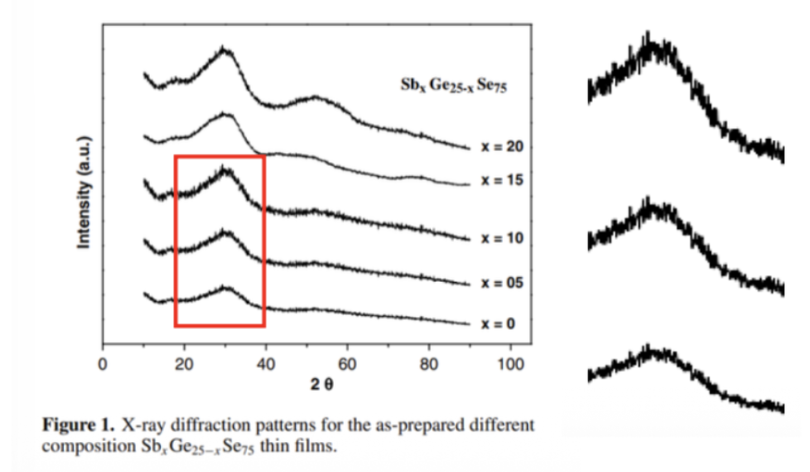
The core technique: anchor your eyes on one small section of the plot, say around 2-theta = 40 degrees, and run them straight down across all traces rather than scanning the whole figure at once.

<figure><img src="https://imagetwin.ai/wp-content/uploads/2026/07/Screenshot-2026-07-22-at-16.39.22.png" alt=""><figcaption><p>Five XRD traces for different Sb-Ge-Se thin film compositions. Anchoring on the boxed section and scanning straight down shows the same trace repeating across all five, supposedly independent, samples.</p></figcaption></figure>

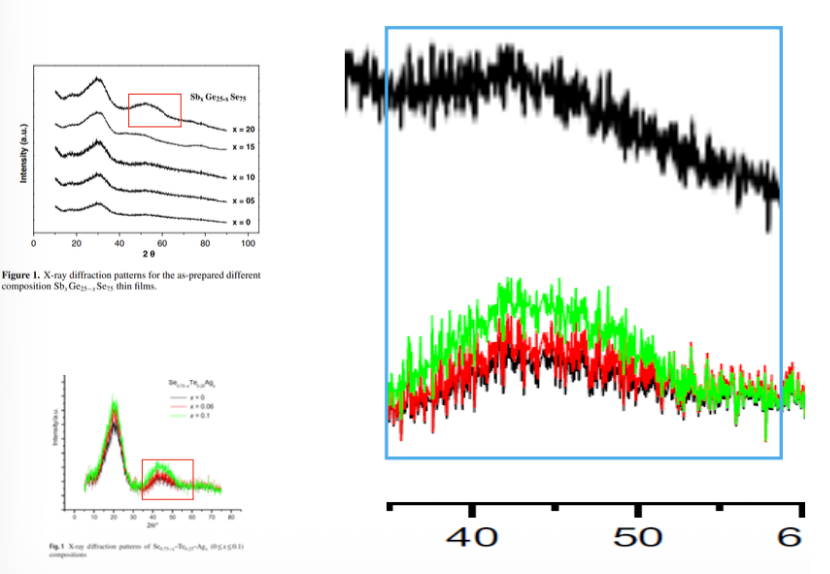
The trickier lesson: traces that look completely different can still share the same underlying data, just with color, intensity, or waveform shape altered.

<figure><img src="https://imagetwin.ai/wp-content/uploads/2026/07/Screenshot-2026-07-22-at-16.40.06.png" alt=""><figcaption><p>Two XRD figures from two different papers that look unrelated at first glance, until the same section is isolated and compared side by side: the baseline noise is nearly identical.</p></figcaption></figure>

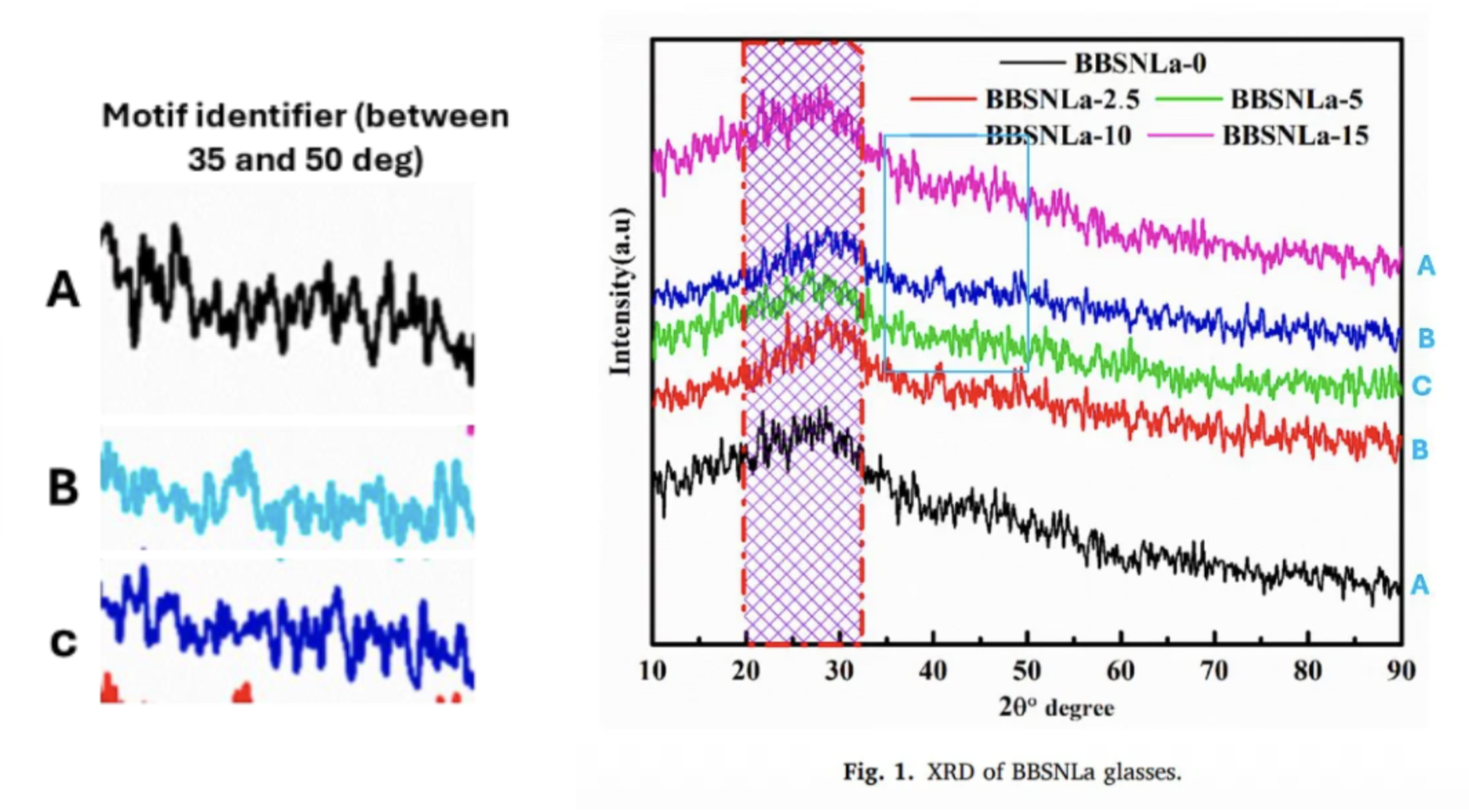
In one case study, she found just three recurring trace “motifs” reused across 72 different papers, once she built a visual key to spot them.

<figure><img src="https://imagetwin.ai/wp-content/uploads/2026/07/Screenshot-2026-07-22-at-16.41.13.png" alt=""><figcaption><p>Motifs A, B, and C, each one reused across dozens of papers with only the color, intensity, or waveform shape changed to disguise it.</p></figcaption></figure>

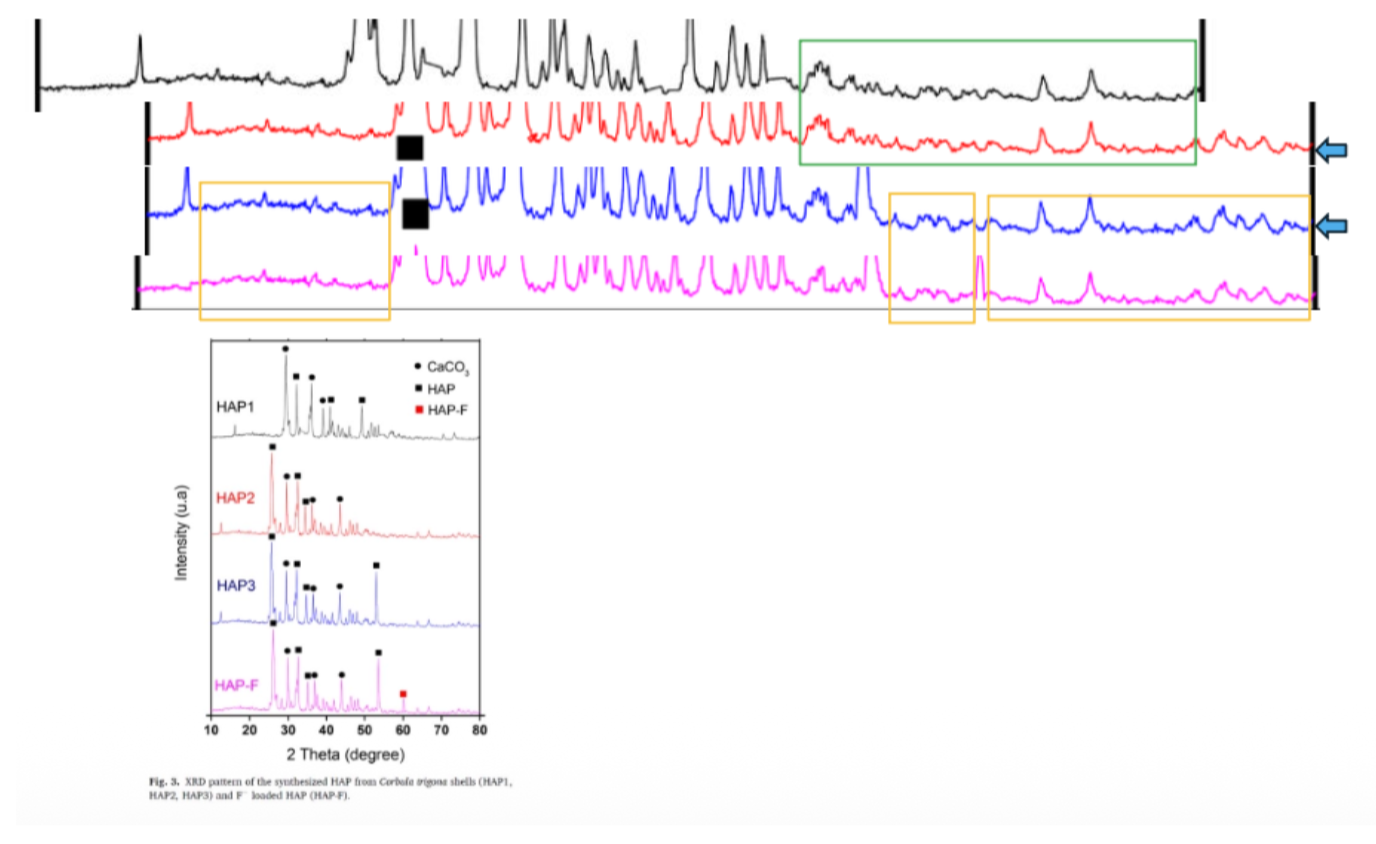
Patchwork is easiest to catch once you zoom into the image file itself, not the PDF preview.

<figure><img src="https://imagetwin.ai/wp-content/uploads/2026/07/Screenshot-2026-07-22-at-16.42.20.png" alt=""><figcaption><p>The boxed sections show the same baseline noise recycled across panels within a single figure.</p></figcaption></figure>

Two more visual tells: pay attention to where traces end, since editors tend to focus effort on the middle of a figure and get sloppy at the edges, and treat unusually thick traces with suspicion, since a thick line makes it easier to hide a seam.

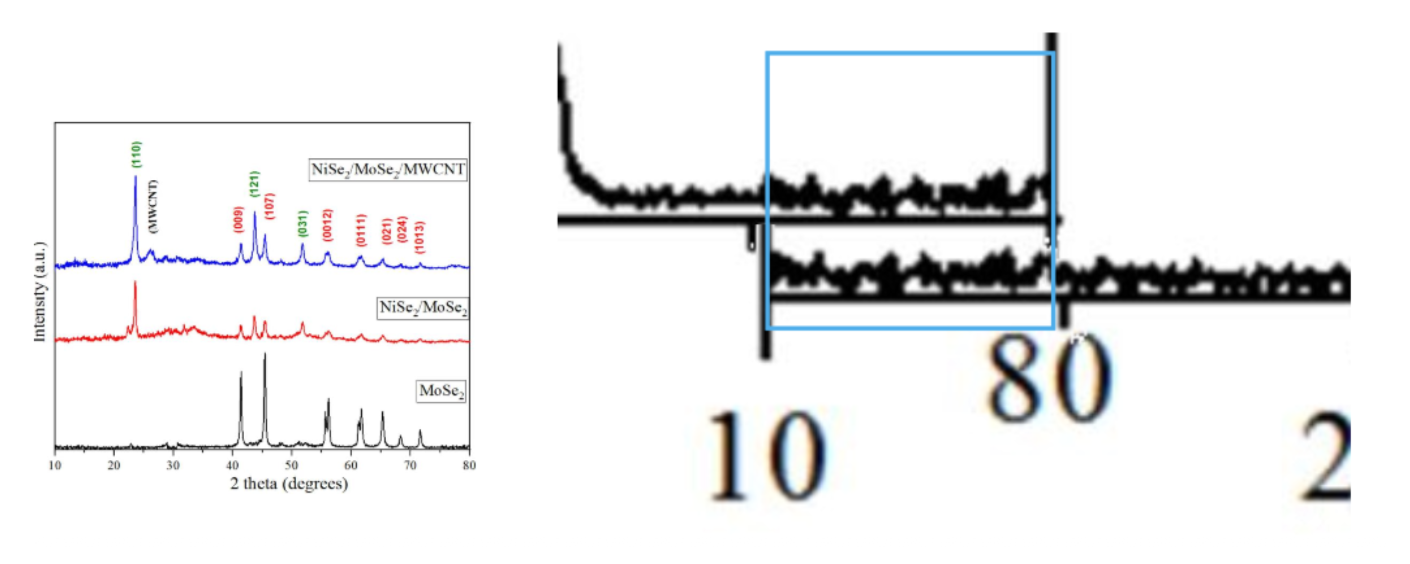
<figure><img src="https://imagetwin.ai/wp-content/uploads/2026/07/Screenshot-2026-07-22-at-16.43.29.png" alt=""><figcaption><p>The 10-degree and 80-degree ends of this trace carry matching noise, a spot editors often overlook.</p></figcaption></figure>

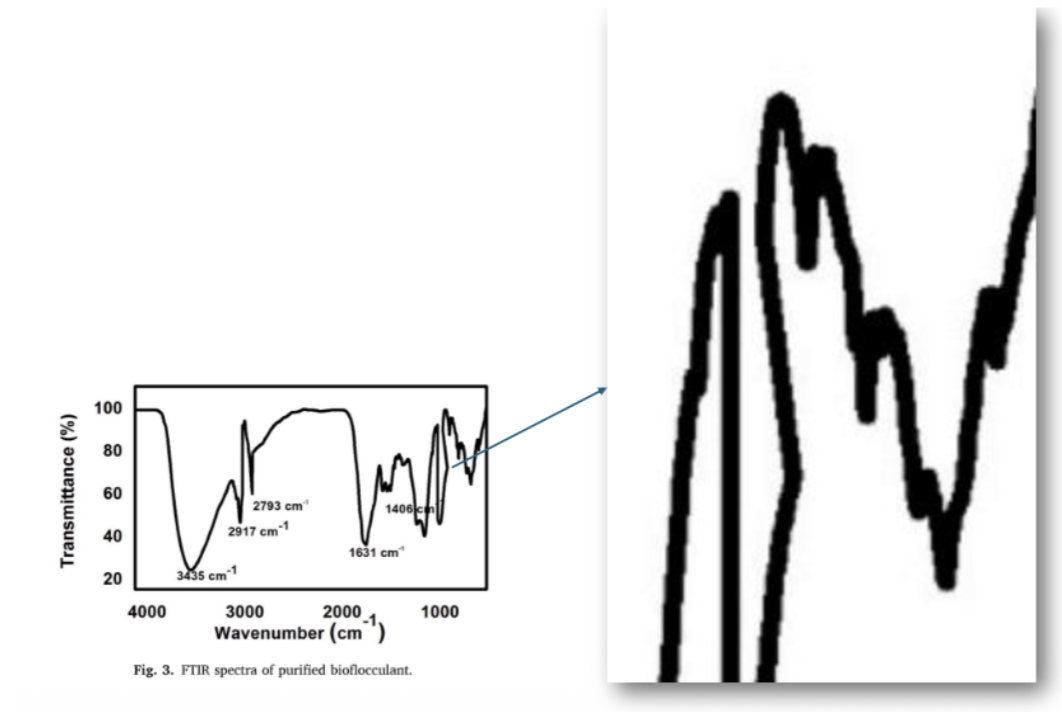
And then there’s the hand-drawn category, images that clearly didn’t come from an instrument but don’t technically violate any named rule, until they do, like a trace that abruptly reverses direction.

<figure><img src="https://imagetwin.ai/wp-content/uploads/2026/07/Screenshot-2026-07-22-at-16.44.29.png" alt=""><figcaption><p>A hand-drawn trace pasted into an FTIR plot, from a paper that has since been retracted. Zoomed in, it backtracks on itself, something no real instrument trace can do.</p></figcaption></figure>

### <mark style="color:$primary;">Mu Yang's Field Tips</mark>

* Anchor your eyes on a small section and remember it before scanning vertically across traces.
* Review the actual image file, not the version embedded in a PDF.
* Watch for chunky traces and check the ends of every plot.
* Binge a suspicious author’s papers in one sitting. Working memory fades fast, so cluster the review.
* Use the figure preview tools some publishers already offer (e.g. ScienceDirect).
* Zoom in. Always zoom in.


# Figure Screening Tips from an Image Integrity Expert

Image integrity expert Jana Christopher on what a clean figure should never show, and how to catch the ones that aren't.

Image screening is often mistaken for an intent test, is this fabrication or not? In practice, most problems aren't fabrication but rather figures that are technically honest but impossible to interpret correctly, alongside the smaller share that are altered on purpose. Both need the same close look.

#### <mark style="color:$primary;">**What Makes Figures Hard to Screen**</mark>

Unlike text, an image carries information in places that aren't obvious at a glance: acquisition settings, processing history, background noise, channel data. Two figures can look identical and mean completely different things, or look completely different and share the same underlying data. That's what makes screening a skill, not a glance.

#### <mark style="color:$primary;">**What a Clean Figure Should Never Show**</mark>

Before anything else, check the basics:

* Image intensities being compared without identical acquisition and processing settings

<figure><img src="https://4155828172-files.gitbook.io/~/files/v0/b/gitbook-x-prod.appspot.com/o/spaces%2FoBwXHdADuISE0Cd1Ah08%2Fuploads%2FJoNeNNAgYh9bSCXzYn7g%2FScreenshot%202026-09-21%20at%2014.54.30.png?alt=media&amp;token=383ce77a-0d53-4a7c-ad3e-244bb902599e" alt=""><figcaption><p>The same microscopy image adjusted at two different brightness/contrast levels, resulting in two different vesicle counts.</p></figcaption></figure>

* Missing, wrong, or badly placed scale bars, especially for tumors, plants, or archaeological specimens where a ruler in the shot beats a scale bar next to it
* Color scales that start and end on the same shade, hiding the difference between the top and bottom of a structure
* Color choices that aren't colorblind-safe, since red-green color blindness affects roughly 8–10% of men and can make a figure unreadable to a meaningful share of readers

<figure><img src="https://4155828172-files.gitbook.io/~/files/v0/b/gitbook-x-prod.appspot.com/o/spaces%2FoBwXHdADuISE0Cd1Ah08%2Fuploads%2FIGeZOpqeXYPX1rGhcxFZ%2FScreenshot%202026-09-21%20at%2014.55.19.png?alt=media&amp;token=2adc40b4-b824-48c5-9c91-c408be6625f0" alt=""><figcaption><p>The same cell image as it looks with normal color vision vs. simulated red-green color blindness. The colors become indistinguishable.</p></figcaption></figure>

#### <mark style="color:$primary;">**A Repeatable Screening Routine**</mark>

1. Scan every figure by eye for anything that looks off.
2. Group images of the same type (all western blots, all microscopy panels) and tile them side by side to compare directly for duplication.
3. Look for alterations, doctoring, and processing irregularities such as over-contrasting.
4. Separate the color channels in multi-channel or merged images, sometimes only one channel has been edited, or the channels don't line up.
5. Check scale bars, magnification, and whether magnified insets are correctly marked in the source panel.
6. Check whether bar graphs, plots, and charts are plausible, and look for duplicated or repeating patterns.
7. Check animal welfare compliance, such as tumor volumes against ethical limits.

#### <mark style="color:$primary;">**Catching Deliberate Manipulation**</mark>

Solarizing an image is one of the fastest ways to expose a doctored region: cloned or copy-pasted background patches that look seamless at normal contrast become obvious once solarized, because the underlying noise pattern matches exactly in a way that doesn't happen by accident. This is the same technique that first uncovered a set of fabricated western blots submitted in 2018, later traced across dozens more submissions.

<figure><img src="https://4155828172-files.gitbook.io/~/files/v0/b/gitbook-x-prod.appspot.com/o/spaces%2FoBwXHdADuISE0Cd1Ah08%2Fuploads%2FPwjPxFYAmUE9TgtLXoK9%2FScreenshot%202026-09-21%20at%2015.01.55.png?alt=media&amp;token=0b775dfb-74b8-43e1-bcf4-dca55695339c" alt=""><figcaption><p>A gel image after solarizing, with two cloned/copy-pasted background patches highlighted in yellow.</p></figcaption></figure>

Where raw data is available, it usually settles the question outright: original files and their metadata (acquisition timestamps, software history, camera and instrument details) either support an author's explanation or contradict it.

<figure><img src="https://4155828172-files.gitbook.io/~/files/v0/b/gitbook-x-prod.appspot.com/o/spaces%2FoBwXHdADuISE0Cd1Ah08%2Fuploads%2FnZ2zEQrPBs7QEI0NCSq7%2FScreenshot%202026-09-21%20at%2015.04.41.png?alt=media&amp;token=5471276a-c8a4-477a-923c-0c8d8b48a104" alt=""><figcaption><p>A raw image metadata panel showing acquisition date, instrument settings, and edit history, the data behind the figure.</p></figcaption></figure>

#### <mark style="color:$primary;">**Field Tips**</mark>

* Composite images assembled from multiple source files often give themselves away through hard edges around a specific region, like a set of nuclei that doesn't match its surroundings.
* Duplicated citations don't stop at retraction. Papers with unresolved image issues can keep accumulating citations for years after being flagged or retracted, which is part of why catching problems before publication matters as much as it does.
* Most of the job isn't making a final call on intent. It's asking the right questions and flagging them for someone who can.


# For Admins

If you have an annual subscription with your institution with Imagetwin, and are the admin, you have several settings and options.

<a href="mailto:contact@imagetwin.ai" class="button primary" data-icon="paper-plane">Contact support</a>

***

#### <mark style="color:$primary;">1. Organisation Management</mark>

As an Admin (and/or Superadmin), you will have access to an Organisation Overview. You can open the overview on the bottom left side under your account.&#x20;

<div align="left"><img src="https://961827826-files.gitbook.io/~/files/v0/b/gitbook-x-prod.appspot.com/o/spaces%2FN11mDbuiSSH2dKEvC7b6%2Fuploads%2F1QuwU0OS7FRhgBHO0k53%2Funknown.png?alt=media&amp;token=cdd5f1c5-1d63-45aa-83a0-6f193ffe38ff" alt="" height="107" width="113"></div>

**As an Admin, you can:**

* Access user overview
* Access scan overview
* Set usage alerts (e.g., get alerted when you have reached 90% of the volume of your plan)
* Invite users to the organisation
* Remove users from the organisation
* Change user role from user to admin (Superadmin only)
* Enable Shared History (See next section)

#### <mark style="color:$primary;">2. Shared History</mark>

As the admin, you can enable “Shared History”, which allows your institution’s users to access and examine each other’s scan results (in the “History” tab). By default, this is OFF and no users from your institution can view each other's scan (just their own).&#x20;

#### <mark style="color:$primary;">3. User Overview</mark>

<figure><img src="https://961827826-files.gitbook.io/~/files/v0/b/gitbook-x-prod.appspot.com/o/spaces%2FN11mDbuiSSH2dKEvC7b6%2Fuploads%2FiMcDJTGfMCN3JVNDJJw2%2Fimage.png?alt=media&amp;token=c39a9789-95f8-426c-bd32-ff72cc86fe68" alt=""><figcaption></figcaption></figure>

The User Overview page gives you a complete list of everyone in your organization. From this dashboard, you can manage permissions and account access:

* Change Roles: Instantly upgrade or downgrade permissions between User and Admin at any time.
* Track Status: Use the status icon to see whether a user has accepted their email invitation.
* Remove Access: Delete users from your organization at any time if they no longer need access.

#### <mark style="color:$primary;">4. Invite users to your organization</mark>

To add team members to your organization, use the Invite users to your organization section:

1. Enter Email Addresses: Paste or type the email addresses into the Email addresses text box.
2. Note: You can add up to 100 email addresses at once. Separate them using commas, spaces, semicolons, or by pressing Enter for a new line.
3. Send Invitations: Click the Invite button. Your colleagues will instantly receive an email invitation containing a link to join your organization.

<div align="left"><img src="https://961827826-files.gitbook.io/~/files/v0/b/gitbook-x-prod.appspot.com/o/spaces%2FN11mDbuiSSH2dKEvC7b6%2Fuploads%2FWPkJ1L8zIb4dn3hDkAS0%2Funknown.png?alt=media&amp;token=4605ba64-6d21-4a45-8252-b43f5fad2d85" alt="" height="135" width="602"></div>

#### <mark style="color:$primary;">5. Scans custom period</mark>

The Scans custom period dashboard allows Admins to monitor usage metrics and track how many scans users have processed within a specific timeframe.

* Set a Date Range: Use the Start and End date pickers to view scan activity for your selected period.
* Search & Filter: Use the Search for a user box to quickly find activity for a specific team member.
* Track Usage: View the breakdown of scans processed per user, including Scans charged and organization-wide totals.
* Export Data: Click Export Details as CSV to download a spreadsheet report of the selected period's usage data.

<div align="left"><img src="https://961827826-files.gitbook.io/~/files/v0/b/gitbook-x-prod.appspot.com/o/spaces%2FN11mDbuiSSH2dKEvC7b6%2Fuploads%2FOkVtTkOHxlX47kKt7zKO%2Funknown.png?alt=media&amp;token=38a2d096-98cd-49ff-9fa2-2a12ab88466c" alt="" height="492" width="602"></div>

#### <mark style="color:$primary;">6. Usage Alerts</mark>

The Usage alerts section allows you to set up automatic email notifications when your organization approaches your plan's scan limit. This helps you track consumption and proactively contact your account manager to upgrade or increase your scan volume before running out (e.g., setting an alert at 90% of your total limit).

* View Active Alerts: The Scan volume section displays your currently configured threshold.
* Add a New Alert: 1. Enter your target scan threshold in the Number of scans field. 2. Click Add Alert to activate the notification.

<div align="left"><img src="https://961827826-files.gitbook.io/~/files/v0/b/gitbook-x-prod.appspot.com/o/spaces%2FN11mDbuiSSH2dKEvC7b6%2Fuploads%2Fhl5fCh9FDG8SwbKXKhVT%2Funknown.png?alt=media&amp;token=1e90e2c9-8ed0-4056-8dc9-ceed5a2f8ffa" alt="" height="207" width="602"></div>


# API Documentation

Everything you need to build, deploy, and manage your projects on the platform.

<a href="mailto:contact@imagetwin.ai" class="button primary" data-icon="paper-plane">Contact support</a>

***

**Version 1.9**\
Last updated: July 2026

<details>

<summary><strong>Changelog</strong></summary>

<figure><img src="https://2286875254-files.gitbook.io/~/files/v0/b/gitbook-x-prod.appspot.com/o/spaces%2FCVDdabOG5r2gCnhHg0Tm%2Fuploads%2F0hTh8YIEtYZX8DriLtHZ%2FScreenshot%202026-10-27%20at%2010.47.16.png?alt=media&amp;token=ac71ff32-3c88-43ad-85e5-2a26bf373b18" alt=""><figcaption></figcaption></figure>

</details>

### <mark style="color:$primary;">How to Create an API key</mark>

The API Access section allows developers to integrate Imagetwin's screening service programmatically into external workflows using a REST API.

**Follow these steps to enable and generate your API key:**

1. Request Activation: Contact your Account Manager to enable API access for your organization.
2. Navigate to Settings: Once activated, log into your account and navigate to the Account tab.

<div align="left"><img src="https://2286875254-files.gitbook.io/~/files/v0/b/gitbook-x-prod.appspot.com/o/spaces%2FCVDdabOG5r2gCnhHg0Tm%2Fuploads%2FpF5m9mZTxHXLk9v4lvvQ%2Funknown.png?alt=media&amp;token=a897d8bc-76b1-450e-8b4a-9b9119e88092" alt="" height="181" width="215"></div>

3. Locate API Access: Scroll to the bottom of the page to find the API Access section.
4. Generate the Key: Click the Generate API Key button to create your unique authentication token.

⚠️ **Important:** Keep your API key secure and do not share it. For technical details on implementation, click the API documentation link provided directly in this section

<div align="left"><img src="https://2286875254-files.gitbook.io/~/files/v0/b/gitbook-x-prod.appspot.com/o/spaces%2FCVDdabOG5r2gCnhHg0Tm%2Fuploads%2FOls4vxdl0pu7rFgsxeZX%2Funknown.png?alt=media&amp;token=c67935de-3b0a-4f03-bbc4-b03c89ae5f1c" alt="" height="72" width="602"></div>

Learn how Imagetwin can be used programmatically via a REST API.\
Are you already using Imagetwin and want to access the API? Contact us at <contact@imagetwin.ai> to activate the API.

### <mark style="color:$primary;">Authentication</mark>

Access to the API requires authentication through a distinctive API key. At [app.imagetwin.ai/account](https://app.imagetwin.ai/account), you can generate a new API key or delete a previously generated key. Per user, one API key can be active. Generating a new key invalidates the previous one.

### <mark style="color:$primary;">Scan</mark>

**Limit:**

Either one document (.pdf, .docx) under 30 MB with fewer than 50 pages or up to 25 images (.jpg, .jpeg, .png, .gif, .jfif, .bmp, .tif, .tiff, .svg, .webp) under 20 MB each.

**Method:**

POST

**Content-Type:**

multipart/form-data

**Endpoint:**

<https://api.imagetwin.ai/v1/scan>

**Request body payload**

| Property Name         | Type        | Description                                                                                                                                                                                                                                                                                                                                                       |
| --------------------- | ----------- | ----------------------------------------------------------------------------------------------------------------------------------------------------------------------------------------------------------------------------------------------------------------------------------------------------------------------------------------------------------------- |
| Authorization Bearer  | header      | API key used as a bearer token for authentication                                                                                                                                                                                                                                                                                                                 |
| file                  | file        | PDF or image files to scan. In case of scanning images, multiple files can be provided.                                                                                                                                                                                                                                                                           |
| IT-crosscheck         | file header | Whether to crosscheck this file with other files in this scan. Use this to filter out expected duplicates. Defaults to true.                                                                                                                                                                                                                                      |
| name                  | text        | (Optional) Custom name of the scan.                                                                                                                                                                                                                                                                                                                               |
| title                 | text        | (Optional) Title of the scanned publication. If extractMetadata is enabled, this value overrides the auto-extracted title.                                                                                                                                                                                                                                        |
| authors               | text        | (Optional) Author(s) of the scanned publication. If extractMetadata is enabled, this value overrides the auto-extracted authors.                                                                                                                                                                                                                                  |
| minScore              | float       | (Optional) A minimum [confidence score](https://imagetwin.ai/posts/introducing-confidence-scores/) from 0.0 to 0.9. Detected integrity issues below this score will be ignored in the PDF report and the JSON result, and will be hidden by default in the web application. The default value is 0.33, which includes fair- and high-confidence integrity issues. |
| callbackUrl           | text        | (Optional) A URL to which we will send a POST request once the scan is finished.                                                                                                                                                                                                                                                                                  |
| excludeIdenticalPaper | text        | (Optional) If the scanned paper is in our database, the software might detect irrelevant duplicates. If set to true, we exclude duplicates from identical papers in the PDF report and the API response. Allowed values: true, false; Default: false                                                                                                              |
| extractMetadata       | text        | (Optional) If true, automatically extracts the title and author from uploaded PDF or Word documents for display in the web interface's scan overview. Defaults to false.                                                                                                                                                                                          |
| externalId            | text        | (Optional) An arbitrary ID (up to 64 characters) that will be returned by the /result endpoint. Use this to match the scan with data in your own system.                                                                                                                                                                                                          |
| source                | text        | (Optional) If the scan is performed by a third-party platform or integration, you can set this field to identify the origin (e.g., 'ScholarOne').                                                                                                                                                                                                                 |

**Response payload**

| Property Name | Type | Description                                                 |
| ------------- | ---- | ----------------------------------------------------------- |
| scanId        | text | A unique ID associated with the performed scan              |
| message       | text | A message indicating that the scan was started successfully |

**Examples**

Scanning a document

```bash
curl -X POST https://api.imagetwin.ai/v1/scan -H 'Authorization: Bearer API_Key' -F file=@'path/to/file.pdf'
```

Scanning images

```shellscript
curl -X POST https://api.imagetwin.ai/v1/scan -H 'Authorization: Bearer API_Key' -F file=@'path/to/file1.png' -F file=@'path/to/file2.jpg'
```

**Example response**

A successful response is indicated by a 200 OK HTTP status code.

```json5
{
   'scanId': 'd904c90756d6653f27ce9fc27847a5bf61e35b4cb288d0a301e879cbef3e4579',
   'message': 'Scan started successfully.'
}
```

**Callback**

If you provided the optional callback URL, we will send a POST request to this URL to inform you that your scan has finished. You can use the callback as an alternative to constantly polling the result endpoint.\
The request you receive will be in JSON format. The status will be either finished or failed. Here is an example:

```json5
{
   'scanId': 'd904c90756d6653f27ce9fc27847a5bf61e35b4cb288d0a301e879cbef3e4579',
   'status': 'finished'
}
```

**Sandbox**

Use the sandbox as a safe environment to test your API calls. Calls to the sandbox are free of charge and return predefined responses.

```bash
curl -X POST https://api.imagetwin.ai/v1/sandbox/scan -H 'Authorization: Bearer API_Key' -F file=@'path/to/file.pdf'
```

### <mark style="color:$primary;">Obtain the Result From a Scan</mark>

Use this endpoint to obtain results from previous scans. Results are available for 90 days after performing the scan.

**Method:**

GET

**Content-Type:**

multipart/form-data

**Endpoint:**

<https://api.imagetwin.ai/v1/result/scanId>

**Request body payload**

| Property Name        | Type   | Description                                       |
| -------------------- | ------ | ------------------------------------------------- |
| Authorization Bearer | header | API key used as a bearer token for authentication |

**Response payload**

| Property Name        | Type            | Description                                                                                                      |
| -------------------- | --------------- | ---------------------------------------------------------------------------------------------------------------- |
| scanId               | text            | A unique ID associated with the performed scan.                                                                  |
| alterationCount      | number          | Number of alterations (e.g., image splicing) detected in the provided images.                                    |
| localDuplicateCount  | number          | Number of duplicates detected within and between the provided images.                                            |
| externDuplicateCount | number          | Number of duplicates detected between the provided images and our reference database.                            |
| aiImageCount         | number          | Number of potential AI-generated images detected in the provided images.                                         |
| pdfReport            | text            | URL to a PDF Report containing the detected duplicates. Accessible for 90 days and contains up to 1000 findings. |
| resultUrl            | text            | URL to a web interface displaying all detections, active for 90 days.                                            |
| minScore             | float           | The minimum confidence score supplied when submitting the scan. Will be 0.33 if no minScore was defined.         |
| highestScore         | float           | The highest confidence value of all findings. 0 if nothing was found.                                            |
| externalId           | text (optional) | The value of externalId that was provided to the scan endpoint. Missing if none was provided.                    |

**Examples**

```shellscript
curl -X GET https://api.imagetwin.ai/v1/result/scanId -H 'Authorization: Bearer API_Key'
```

**Example response**

If the scan is still in progress, a 202 Accepted HTTP status code is returned.\
A successful response is indicated by a 200 OK HTTP status code.

```json5
{
    'scanId': 'd904c90756d6653f27ce9fc27847a5bf61e35b4cb288d0a301e879cbef3e4579',
    'alterationCount': 0,
    'localDuplicateCount': 2,
    'externDuplicateCount': 0,
    'aiImageCount': 0,
    'pdfReport': 'https://app.imagetwin.ai/pdfreport/e590ff7414eef232b52c990ab15773e58c5ad9965340b8f3461531d047184a60.pdf',
    'resultUrl': 'https://app.imagetwin.ai/result/e590ff7414eef232b52c990ab15773e58c5ad9965340b8f3461531d047184a60',
    'minScore': 0.33,
    'highestScore': 0.99
}
```

To test different results, use one of the following predefined scanId values:

| Scan type              | HTTP status code | scanId                                                           |
| ---------------------- | ---------------- | ---------------------------------------------------------------- |
| Successful scan        | 200              | d904c90756d6653f27ce9fc27847a5bf61e35b4cb288d0a301e879cbef3e4579 |
| Scan still in progress | 202              | bbe5489089af902791419a29f3fac98606c43359afc623f852c5e00e10afd0d9 |
| Scan failed            | 500              | 21e16e8c71c015715dae4a64b6c12fc5f267b776ebafa27f175e27b48da788fd |

### <mark style="color:$primary;">Scan Overview</mark>

Use this endpoint to retrieve a summary list of scans performed within a specified time span. Scan dates are stored in Coordinated Universal Time (UTC, ±00:00).

**Method:**

GET

**Endpoint:**

<https://api.imagetwin.ai/v1/scan-overview>

**Request body payload**

| Property Name        | Type   | Description                                                                 |
| -------------------- | ------ | --------------------------------------------------------------------------- |
| Authorization Bearer | header | API key used as a bearer token for authentication                           |
| startDate            | text   | Start date in YYYY-MM-DD format. Scans performed on this date are included. |
| endDate              | text   | End date in YYYY-MM-DD format. Scans performed on this date are included.   |
| exportFormat         | text   | (Optional) Format of the response; can be either json (default) or csv.     |

**Examples**

```zsh
curl -X GET "https://api.imagetwin.ai/v1/scan-overview?startDate=2023-01-01&endDate=2023-06-30&exportFormat=json" -H 'Authorization: Bearer API_Key'
```

**Example response**

A successful response is indicated by a 200 OK HTTP status code.

```json5
{
    "startDate": "2025-04-10",
    "endDate": "2025-04-12",
    "scans": [
        {
            "scanId": "1625b21d-0492-44b5-83bb-76161ab116eb",
            "scanDate": "2025-04-10T13:54:05",
            "user": "user@example.com",
            "freeOfCharge": false,
            "apiScan": false
        },
        {
            "scanId": "b8218b13-ad59-4f59-8067-d5406732440f",
            "scanDate": "2025-04-10T15:07:23",
            "user": "user@example.com",
            "freeOfCharge": true,
            "apiScan": false
        }
    ]
}
```

### <mark style="color:$primary;">**Response Status Codes**</mark>

| HTTP status code | Type                  | Description                                                                                         |
| ---------------- | --------------------- | --------------------------------------------------------------------------------------------------- |
| 200              | OK                    | Response for successful HTTP requests.                                                              |
| 202              | Accepted              | The request has been accepted for processing, but has not been completed.                           |
| 400              | Bad Request           | The request body payload might be invalid, or the request limitations are exceeded.                 |
| 401              | Unauthorized          | Unauthorized to use the requested endpoint. Make sure that you are using a valid API key.           |
| 404              | Not Found             | No result found for the provided scanId.                                                            |
| 409              | Conflict              | File already exists in private repository.                                                          |
| 429              | Too Many Requests     | The scan endpoint allows 20 requests per minute. The result endpoint allows 60 requests per minute. |
| 500              | Internal Server Error | A server error occurred during processing the provided data.                                        |
| 503              | Internal Server Error | The service is currently unavailable or under maintenance.                                          |
| 504              | Internal Server Error | The service is currently unavailable or under maintenance.                                          |

### <mark style="color:$primary;">Deprecated Endpoints</mark>&#x20;

The following endpoints are deprecated and will not be supported in the future.

#### <mark style="color:$primary;">Deprecated: Scan a PDF file</mark>

**Limit:**

One PDF file under 30 MB with fewer than 50 pages

**Method:**

POST

**Content-Type:**

multipart/form-data

**Endpoint:**

<https://api.imagetwin.ai/v1/scanPdf>

#### <mark style="color:$primary;">Request body payload</mark>

| Property Name        | Type   | Description                                       |
| -------------------- | ------ | ------------------------------------------------- |
| Authorization Bearer | header | API key used as a bearer token for authentication |
| pdfFile              | file   | PDF file to scan                                  |

#### <mark style="color:$primary;">Response payload</mark>

| Property Name | Type | Description                                                 |
| ------------- | ---- | ----------------------------------------------------------- |
| scanId        | text | A unique ID associated with the performed scan              |
| message       | text | A message indicating that the scan was started successfully |

#### <mark style="color:$primary;">Deprecated: Scan a list of images</mark>

**Limit:**

Up to 25 image files (.jpg, .jpeg, .png, .gif, .jfif, .bmp, .tif, .tiff, .svg) under 20 MB each.

**Method:**

POST

**Content-Type:**

multipart/form-data

**Endpoint:**

<https://api.imagetwin.ai/v1/scanImages>

#### <mark style="color:$primary;">Request body payload</mark>

| Property Name        | Type   | Description                                                           |
| -------------------- | ------ | --------------------------------------------------------------------- |
| Authorization Bearer | header | API key used as a bearer token for authentication                     |
| imageFile            | file   | Image file to scan. Multiple images can be added to a single request. |

#### <mark style="color:$primary;">Response payload</mark>

| Property Name | Type | Description                                                 |
| ------------- | ---- | ----------------------------------------------------------- |
| scanId        | text | A unique ID associated with the performed scan              |
| message       | text | A message indicating that the scan was started successfully |

<br>